 Zinn® Ads
Guides
Approve ad changes before they go live
Approve-first is the default on every plan: how the Needs you queue works and what each status means.
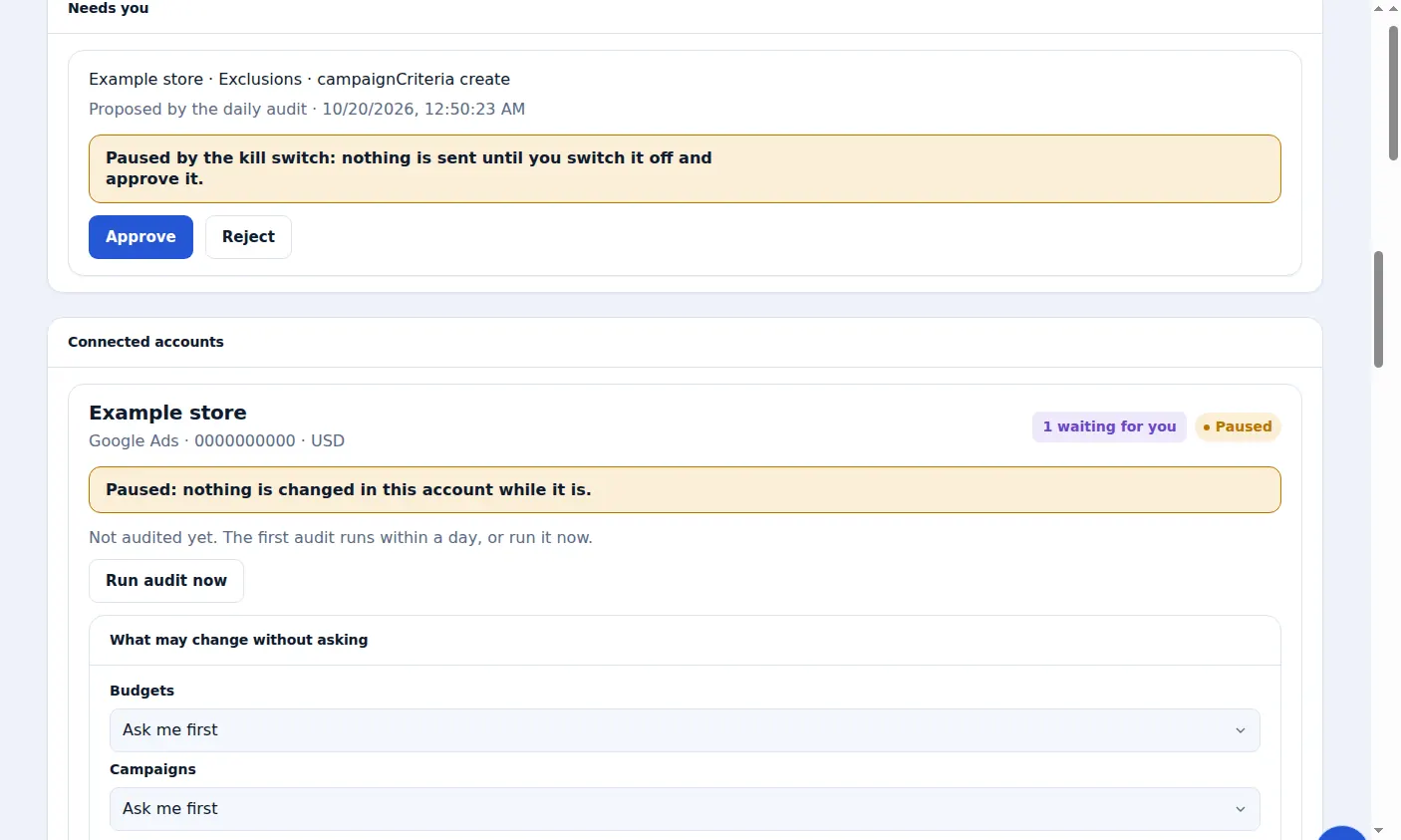
Every change starts as a proposal
Every plan starts with Ask me first on every kind of change. What the daily audit or Simple mode would change waits under Needs you until you decide.
Read the change
Each change names its account, its kind (for example Keywords or Budgets), what it does and who proposed it: Proposed by the daily audit, or Made automatically for a kind you set to Automatic.
Approve or reject
Approve applies the change in your account straight away. Reject changes nothing. Both are recorded in the Changes list.
Safety limits still apply
A change that would break a spend ceiling is shown as Stopped by a safety limit and is not sent. If Google refuses a change, it is shown as Google refused it.
Approve from your e-mail
The daily e-mail lists what needs you, each with its own link. A link opens the change in Zinn® Ads and asks you to sign in before anything happens.
A real screen from the Zinn® Ads dashboard, with example account names.
Next guide: Set spend ceilings and use the kill switch
Included free with Zinn Digital® hosting
Host with Zinn Digital® and the click shield is free
On our hosting the click-fraud shield runs on the server, and Zinn® Ads can see when your site or checkout is down and pause your ads until it is back.