 Zinn® Ads
Guides
Connect Google Ads to Zinn® Ads
Sign in with Google, choose the accounts to add, including the accounts under a manager account, and disconnect whenever you like.
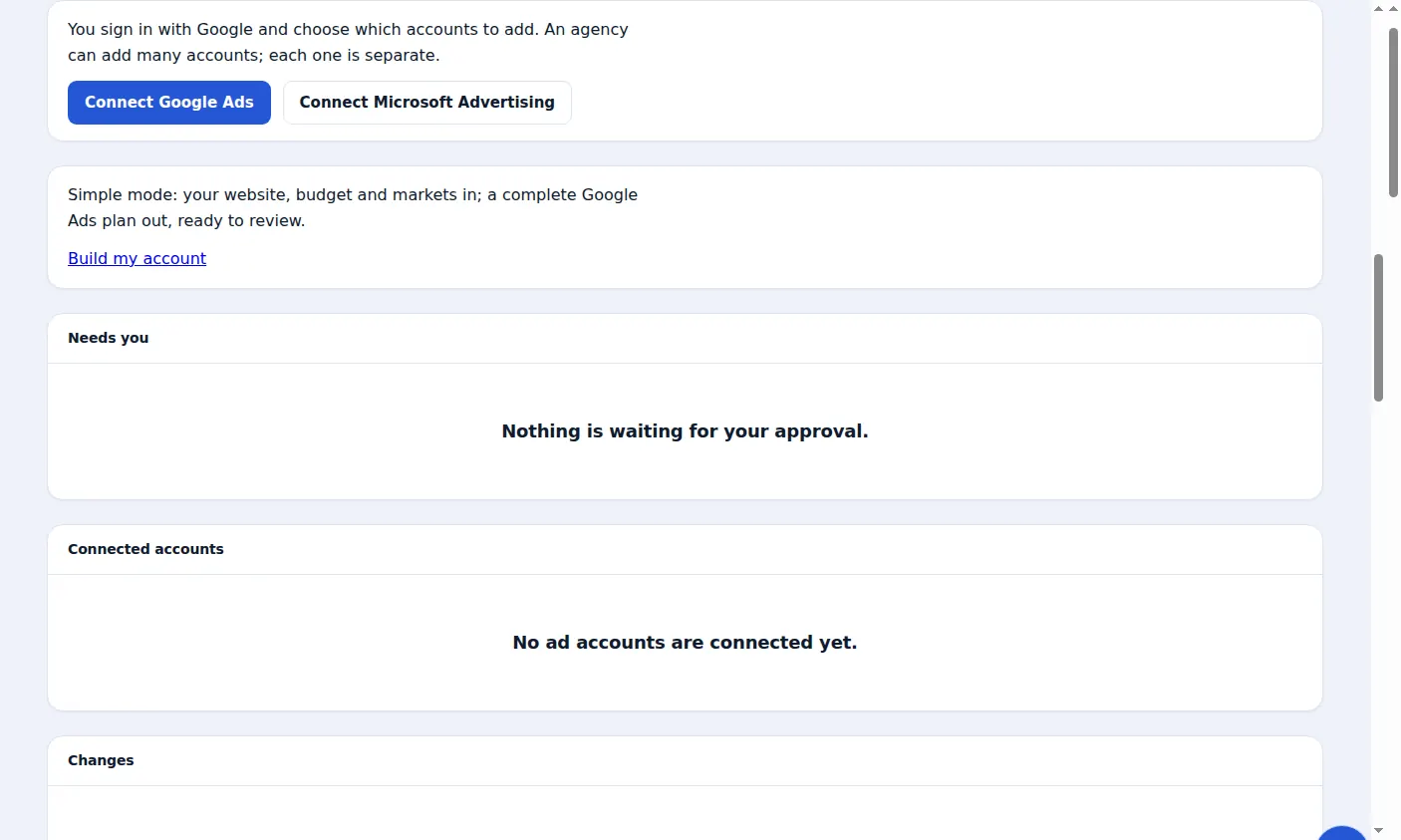
Press Connect Google Ads
In Zinn® Ads, press Connect Google Ads. You need a plan first (Free is enough) and the owner or developer role in your organisation.
Sign in with Google and allow access
Google asks you to let Zinn® Ads manage your Google Ads accounts. If you cancel or refuse, nothing is added: press Connect Google Ads again and allow access.
Choose the accounts to add
Manager accounts are shown with the accounts under them. A manager account itself is not added: tick the accounts under it, then press Add. Accounts you added before are marked Already added.
Check the Autopilot settings
Every new account starts with Ask me first on every kind of change, so nothing is changed until you approve it. The account's Autopilot settings let you change that, kind by kind, at any time.
Disconnect at any time
Press Disconnect beside an account. We stop reaching it, forget our access and delete everything we hold about it. Changes already made stay in your Google Ads account. To remove Zinn® Ads from your Google account too, open myaccount.google.com/permissions.
A real screen from the Zinn® Ads dashboard, with example account names.
Next guide: Connect Microsoft Advertising to Zinn® Ads
Included free with Zinn Digital® hosting
Host with Zinn Digital® and the click shield is free
On our hosting the click-fraud shield runs on the server, and Zinn® Ads can see when your site or checkout is down and pause your ads until it is back.