 Zinn® Ads
Guides
Get started with Zinn® Ads
From sign-in to your first approved change: pick a plan, connect Google Ads, let the daily audit run and decide on what it proposes.
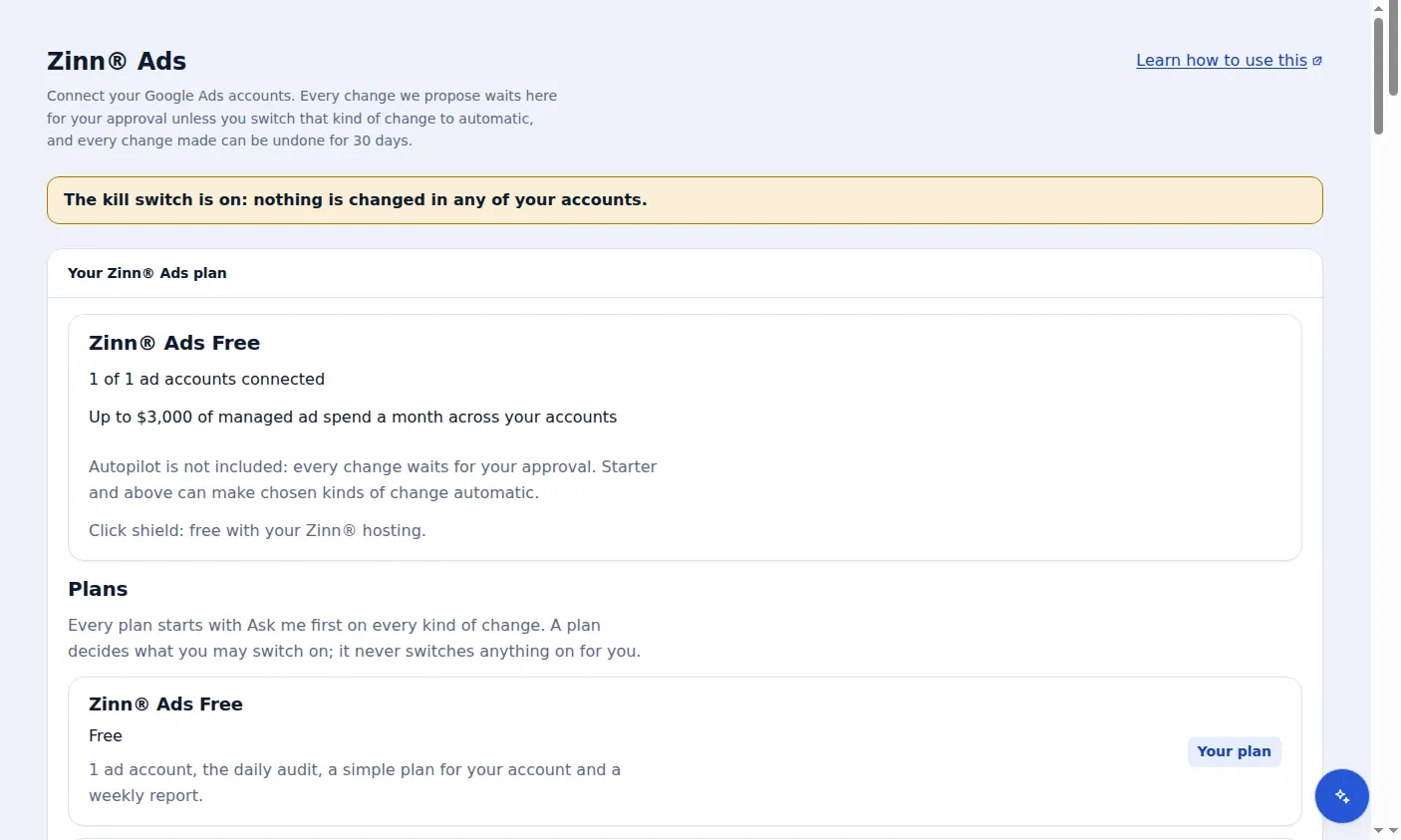
Open Zinn® Ads in your dashboard
Zinn® Ads lives in the same Zinn Digital® dashboard as your hosting. Sign in at app.zinndigital.com and choose Zinn® Ads in the side menu.
Pick a plan
The Plans card lists Free, Starter, Pro and Agency. Free costs nothing and needs no card: press Start free. An ad account can only be connected once you have a plan.
Connect your Google Ads account
Press Connect Google Ads, sign in with Google, allow access and choose the accounts to add. Each account you add is kept separate, with its own settings.
Let the first audit run
The daily audit reads each connected account within a day, or straight away when you press Run audit now. Everything it would change is listed under Needs you.
Approve, reject or undo
Approve sends a change to your account, Reject changes nothing, and every change that was made can be undone for 30 days from the Changes list.
A real screen from the Zinn® Ads dashboard, with example account names.
Next guide: Zinn® Ads plans and add-ons
Included free with Zinn Digital® hosting
Host with Zinn Digital® and the click shield is free
On our hosting the click-fraud shield runs on the server, and Zinn® Ads can see when your site or checkout is down and pause your ads until it is back.