 Zinn® Ads
 feature
Daily and monthly spend limits Zinn® Ads never crosses
Set a daily and a monthly spend ceiling for each ad account: Zinn® Ads refuses any change that would cross them, and one kill switch stops every change.
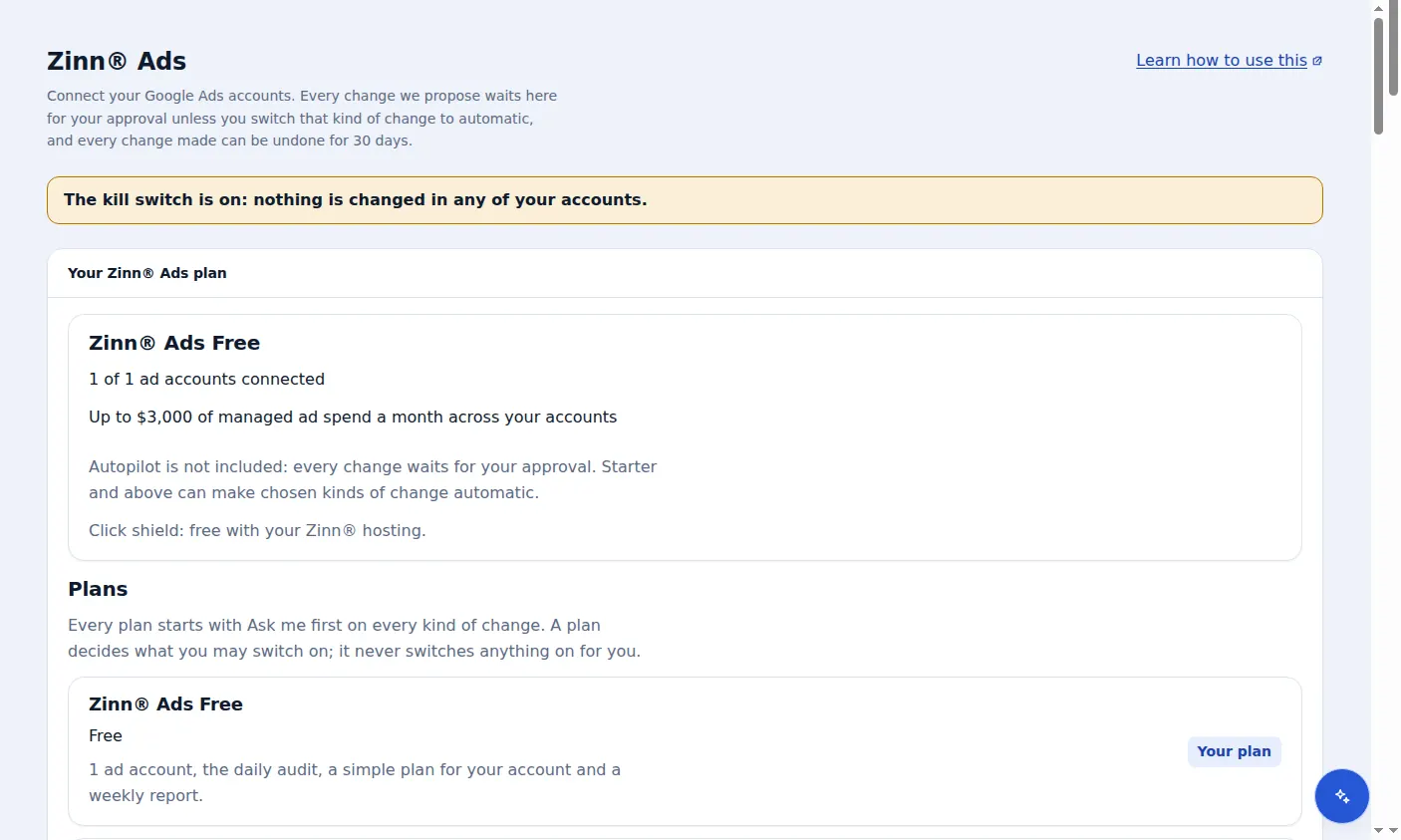
How do the Zinn® Ads spend limits work?
You set a daily and a monthly spend ceiling for each ad account, in its own currency. Zinn® Ads refuses any change that would take the account's daily budgets above the daily ceiling, or a month of them above the monthly one.
- A daily and a monthly spend ceiling for each ad account, in the account's own currency
- A change that would cross a ceiling is refused and shown as Stopped by a safety limit
- Ceilings apply to every change: approved, automatic, from Simple mode or from your AI assistant
- Stop all changes: one kill switch for every connected account
- Pause this account: stop one account while the others carry on
- Undo keeps working while changes are stopped
- One monthly ceiling across every ad network, with the money moved towards the cheapest result
- While an invoice is unpaid, no change is sent and no audit or report e-mail runs; everything resumes by itself once the account is paid up
- Ads paused while your site on Zinn® hosting is down or too slow, and resumed by themselves once it is healthy again
- When Google pauses your whole account, no change judged on traffic is sent while the pause lasts, and the autopilot resumes the hour it lifts
How is the spend limit enforced?
Before any change is sent, Zinn® Ads adds up the account's daily budgets as they would be after it. If the total would pass the daily ceiling, or a month of it the monthly ceiling, the change is refused and nothing reaches the network.
What does the kill switch stop?
Stop all changes stops Zinn® Ads changing anything in any of your connected accounts, approved or automatic, until you press Allow changes again. Your campaigns keep running as they are, and Undo still works.
Is the limit per account or for everything?
Both. In Zinn® Ads, spend ceilings and Pause this account are set for each ad account on its own, while the kill switch covers every connected account at once.
Does a ceiling cap what the network spends?
A Zinn® Ads ceiling limits the changes Zinn® Ads makes: no budget it sets or raises can cross it. The network spends within the daily budgets in your account, which it may exceed on some days as its own rules allow.
How do I set spend limits?
Open Autopilot settings
On the account's card in Zinn® Ads, open Autopilot settings.
Step-by-step guide: Set spend ceilings and use the kill switch
Enter the ceilings
Enter a daily and a monthly ceiling in the account's currency and press Save. Leave a field empty for no ceiling.
Step-by-step guide: Set spend ceilings and use the kill switch
Know your two stop buttons
Stop all changes stops every account; Pause this account, beside each account, stops just that one.
Step-by-step guide: Set spend ceilings and use the kill switch
Frequently asked questions
What happens when a change is refused?
It is shown as Stopped by a safety limit, and nothing is sent to the network.
Which currency are the ceilings in?
The ad account's own currency, the one its budgets are set in.
Does the kill switch pause my ads?
No. It stops changes being made; your campaigns keep running as they are in your ad account.
Are my ceilings the same as my managed ad spend?
Yes. Managed ad spend, which your plan covers, is the monthly spend ceilings of all your connected accounts added together.
Included free with Zinn Digital® hosting
Host with Zinn Digital® and the click shield is free
On our hosting the click-fraud shield runs on the server, with nothing to install and nothing to pay.
Try Zinn® Ads free
The Free plan includes one ad account and the daily audit, with no card needed. Paid plans add the autopilot.