 Zinn® Ads
User guide
Send Zinn® Ads reports to your clients, as a PDF or in Looker Studio
Schedule a weekly or monthly PDF report for each client, under your own white label and in the client's language, and give each client's figures to Looker Studio with a key that reads that client only.
Open the report and choose the client
In the app, open Zinn® Ads and then Report. Under Send this report to a client, choose the client organisation. Everything below works on that one client: its ad accounts, its campaigns and its figures, never another client's.
Download the PDF now
Press Download the PDF. The report covers the date window chosen at the top of the Report screen and shows spend, clicks, conversions and conversion value per ad account and campaign. It carries your white label: your name, logo and colours, not ours.
Schedule it every week or every month
Choose How often: every week (on Monday) or every month (on the 1st). Under Send to, enter up to 10 e-mail addresses, and pick the report language: any of the 58 languages the app speaks, with Arabic, Hebrew, Persian and Urdu laid out right to left. Press Save the schedule.
Send it now, pause it or remove it
Each schedule shows when the next report goes and when the last one went. Send it now e-mails the report straight away, Turn off pauses it and Turn on resumes it, and Remove deletes the schedule. When a report could not be sent, the schedule says why, for example that the account is not in good standing, and the next run tries again.
Make a Looker Studio key for the client
Under Reports in Looker Studio, press Make a Looker Studio key. The key belongs to that client and can only read its advertising figures: it cannot change anything and cannot see any other client. Copy it straight away, because it is shown only once. Make one key per client.
Add the Zinn® Ads connector in Looker Studio
Press Add Zinn® Ads to Looker Studio, approve the connector, paste the client's key and the client ID shown in the app, and press Connect. Your Looker Studio report then reads that client's spend, clicks, impressions, conversions and conversion value by day, network, ad account and campaign, and refreshes from Zinn® Ads whenever the report is opened.
Read the report per account and per client
The Report screen shows spend, clicks, conversions and conversion value for each ad account and campaign over the dates you pick. If you manage client organisations, each client gets its own rolled-up line, and a client never sees another client's figures or yours.
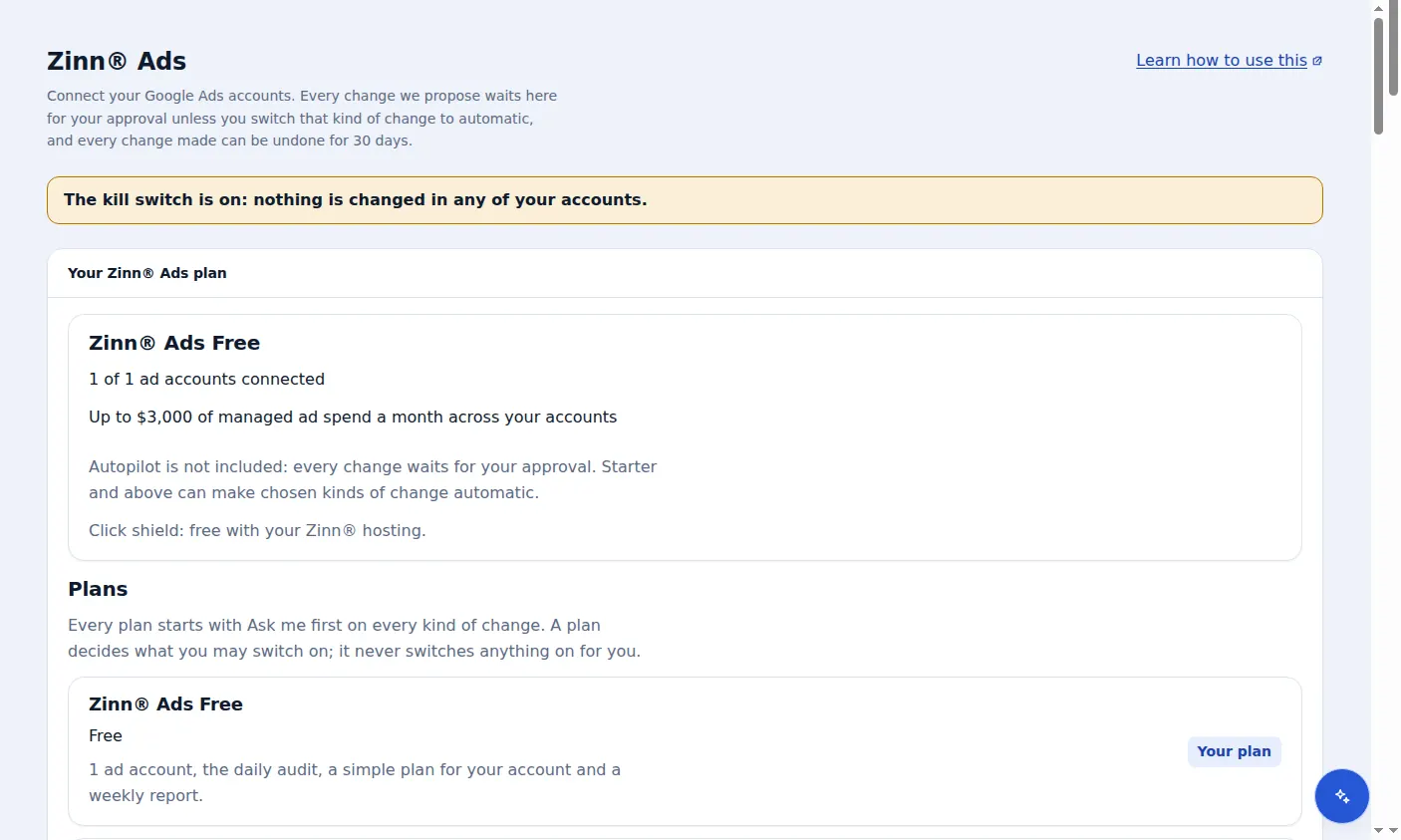
A real screen from the Zinn® Ads dashboard, with example account names.
The feature this guide sets up: For agencies
Next guide: Control Zinn® Ads from MCP and AI assistants
Included free with Zinn Digital® hosting
Host with Zinn Digital® and the click shield is free
On our hosting the click-fraud shield runs on the server, with nothing to install and nothing to pay.