 Zinn® Ads
Read your daily Google Ads audit
Read your daily Google Ads audit — Part 2 of 3
What the Zinn® Ads daily audit looks at in each connected account, where each finding appears, and how to act on it, from Needs you to Changes.
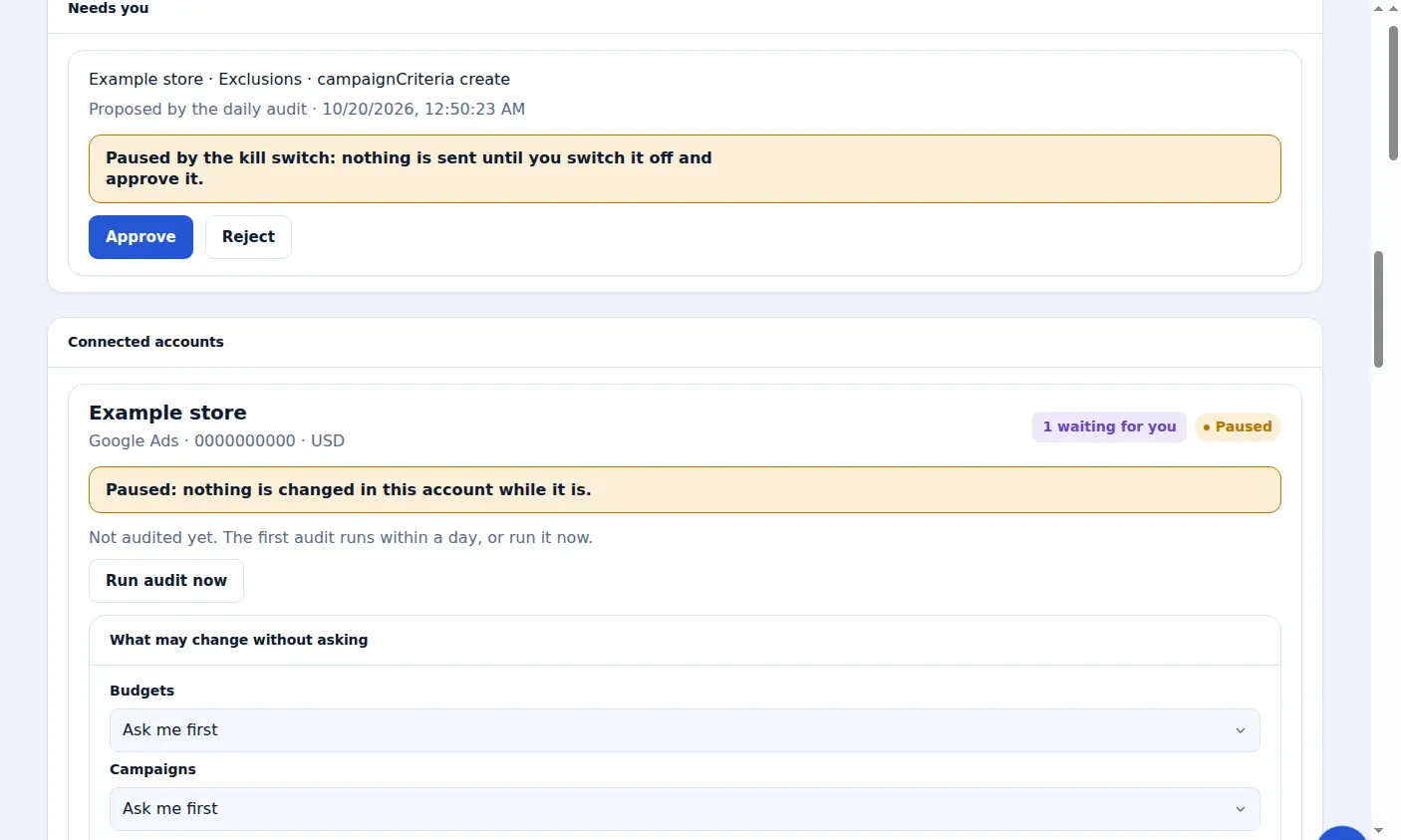
Every finding becomes a change your settings allow
The audit does not stop at a list. On your account it makes the same changes we make on our own: it adds a search term that spends and never converts as a negative keyword, pauses a keyword that had enough clicks and no conversion, and adds a search term that converts as a new keyword. Each follows your Autopilot settings: Automatic makes it with a 30-day Undo, Ask me first puts it under Needs you, Never leaves it alone. Your spend ceilings, Hold until a sale and your return target still apply. Autopilot settings shows what it does on each account and what the latest audit did.
Checks on your account, the same as on ours
Under Checks on your account, Zinn® Ads shows the checks it runs on your account every day, the same ones it runs on our own. It works out how many clicks a search needs before no conversion means anything, from your account's own figures, and leaves a search with fewer alone. A shared budget can move each campaign onto its own budget, split by what each one spent, without raising the total: automatically when automatic changes are on, otherwise as a suggestion you apply with one click. Each of Google's recommendations is reviewed by our rules, never accepted blindly: declined, replaced by our own version, or left for you when it touches spend, bids or budgets. And it shows what its own automatic changes of the last 28 days did: each negative keyword it added with what that search cost in the 7 days before and the 7 days after, and each keyword it added with its clicks, cost and conversions since.
Budgets and bidding on your account, inside your ceiling
The daily budget plan and the bidding ladder run on your account as they do on ours. With a monthly spend ceiling set, while the month is heading over it the plan trims the budgets that bring the least back, and it raises a campaign held back by its budget only while there is room under the ceiling. With no monthly ceiling it trims and raises nothing. A campaign moves to the next bidding step only once it has the results for it. Both follow your Autopilot settings for budgets and for bidding: Automatic makes the change, Ask me first waits for your yes, Never leaves it alone.
Bare platform and free-hosting searches blocked
A search that is only the name of a platform, such as "wordpress" or "wordpress com", or one for a free host or a free blog subdomain, such as blogspot or InfinityFree, comes from someone who will not buy from you. Every daily search-term check blocks that one search on its own, in every language, from its first click, never one of your own keywords and never a search that brought you a sale or sign-up. Each block is listed under What we found, and one click undoes it.
Your sales against Google's count, and the reasons
Under Checks on your account, Your results against Google's count sets your sales from an advert click beside the number Google last counted, and splits the difference: uploaded, uploaded in the last two days that Google has not reported yet, waiting to upload, refused by Google with its reason, or not uploadable, with the sales that had no advert click shown apart. When a conversion action records nothing, What we found says why: Google refused the uploads, uploads more than two days old are still not counted, or nothing was sent to it yet. In Autopilot settings you can list the words your landing-page button must say, and Your landing pages flags a page where no button says any of them, naming what the buttons do say. You can also set your sales window, the days your customers take from a trial, lead or sign-up to a sale: until it passes, each one counts as pending, not lost. And every campaign is checked for four sitelinks, with a gap filled only from your own sitelinks on the same site and language.
Next part: Part 3 of 3
A real screen from the Zinn® Ads dashboard, with example account names.
The feature this guide sets up: Google Ads audit
Next guide: Review the negative keywords found in your search terms
Included free with Zinn Digital® hosting
Host with Zinn Digital® and the click shield is free
On our hosting the click-fraud shield runs on the server, with nothing to install and nothing to pay.